Integrations
Revelry Ai supports integrations with external services to extend your platform's capabilities. Integrations allow you to connect third-party tools directly to Revelry Ai for data synchronization, MCP tool access, and workflow automation.
Personal vs. Shared Integrations
The Integrations page may show up to two tabs depending on your permissions:
Personal Tab
Integrations connected to your individual account. The connection uses your credentials. Anything the AI writes into a chat or artifact still follows your organization's sharing rules. All users can access the Personal tab.
- GitHub (Personal) — Connect your GitHub account using a personal access token for GitHub MCP tools in chat. This is separate from any organization-level GitHub configuration.
- Google Workspace — Connect your Google Workspace account for Drive, Gmail, Calendar, Docs, Sheets, and Slides tools in chat. Tools run with that account's Google permissions; chat and artifact output follows normal organization sharing.
- Jira — Connect your Atlassian account to search, create, and update Jira issues via MCP tools
- Bluebeam - Connect your own Bluebeam ID for Studio Projects, Sessions, documents, and markups in chat. Tools run with your individual Studio permissions.
- Autodesk - Connect your own Autodesk account for BuildingConnected bid board, opportunities, bid packages, and projects in chat. Tools run with your individual BuildingConnected permissions.
Shared Tab (Admin Only)
Integrations connected at the organization level, available to all members. The Shared tab is only visible to users with the Manage Integrations permission (typically admins).
- HubSpot — Live CRM queries in chat via MCP tools
- Pipedrive — CRM data and tools
- GitHub (Organization) — Organization-level GitHub MCP and/or data source sync
- Procore — Construction project data
- Microsoft 365 — Mail, Calendar, Word, Excel, and SharePoint via Agent 365 MCP
- ElevenLabs — Text-to-speech for artifacts
- Metabase — Dashboard and dataset queries via MCP tools
- Amplitude — Product analytics and event data via MCP tools
- Slack — Message, channel, and file search via MCP tools
- Zapier — Thousands of apps via Zapier's MCP endpoint
- Mapbox - Points of interest, geocoding, distances, and directions via MCP tools
- Xero - Live accounting data and financial reports via MCP tools
If you don't see the Shared tab, your account doesn't have the Manage Integrations permission. Contact your organization admin to configure shared integrations.
Available Integrations
HubSpot
Connect your HubSpot account as an OAuth MCP server. Once connected, the AI queries your CRM data live in chat using MCP tools — no import or sync into your Knowledge Base.
Learn more: HubSpot Integration
Pipedrive
Connect your Pipedrive CRM to interact with deals, contacts, organizations, activities, and notes directly through chat using MCP tools.
Learn more: Pipedrive Integration
GitHub
GitHub can be connected in three ways:
- Personal MCP connection — Create a fine-grained personal access token to connect the MCP tool to your individual GitHub account. Configured from the Personal tab.
- Organization MCP connection — Admins can configure a shared GitHub token from the Shared tab. When set, this overrides all personal connections for GitHub MCP tools. See GitHub MCP — Personal vs. Shared for precedence details.
- Data Source — Connect repositories at the organization level to sync code, issues, and documentation as searchable documents. Only admins can configure GitHub Data Sources, via the Shared tab.
Learn more: GitHub
Procore
Connect Procore for construction project data integration, including vendor and subcontractor data queries via MCP tools.
Microsoft 365
Connect Microsoft 365 via Agent 365 MCP servers. Once connected, the AI can work with your Outlook Mail, Calendar, Word, Excel, and SharePoint/OneDrive live in chat using MCP tools. Requires Microsoft 365 Copilot licensing and Frontier Program enrollment.
Learn more: Microsoft 365 Integration
Google Workspace
Connect your Google Workspace account to search and read Drive files, read mail and prepare drafts, check calendar availability, and read Docs, Sheets, and Slides from chat. Each person connects their own account, so results match that account's Google permissions. The AI never sends email; drafts land in your Gmail Drafts folder. Chat and artifact output follows normal organization sharing.
Learn more: Google Workspace Integration
Metabase
Connect a partner-hosted Metabase instance (v0.60+) to query dashboards, datasets, and saved questions directly from chat using auto-discovered MCP tools. Each user authenticates with their own Metabase credentials via OAuth.
Note: Contact your Revelry Ai team to enable.
Learn more: Metabase Integration
ElevenLabs
ElevenLabs provides text-to-speech capabilities for generating audio narrations of your artifacts. Once enabled, you can generate and listen to audio versions of artifact content directly in the platform.
Note: Contact your Revelry Ai team to enable.
Learn more: ElevenLabs Integration
Amplitude
Connect your Amplitude account to query product analytics, charts, and event data directly from chat using MCP tools. Each user authenticates with their own Amplitude credentials via OAuth.
Note: Contact your Revelry Ai team to enable.
Learn more: Amplitude Integration
Jira
Search, create, edit, transition, and comment on Jira issues from chat via Atlassian's official Rovo MCP Server. Each user connects their own Atlassian account, so actions run with their individual Jira permissions. Jira Cloud only.
Note: Contact your Revelry Ai team to enable.
Learn more: Jira Integration
Slack
Search messages, channels, files, and members, read and send messages, and work with canvases from chat using MCP tools. An admin registers a Slack app once for the organization, then each user connects their own Slack account via OAuth.
Note: Contact your Revelry Ai team to enable.
Learn more: Slack Integration
Zapier
Reach thousands of apps through Zapier. Each user creates their own Zapier MCP server at mcp.zapier.com, chooses which apps and actions to expose, and connects it here — the AI then triggers those actions on their behalf.
Note: Contact your Revelry Ai team to enable.
Learn more: Zapier Integration
Mapbox
Connect a Mapbox access token so the AI can find points of interest, turn addresses into coordinates and back, and calculate travel distances, times, and step-by-step directions from chat. All Mapbox tools are read-only.
Note: Contact your Revelry Ai team to enable.
Learn more: Mapbox Integration
Xero
Connect one Xero organization so the AI can answer bookkeeping questions from live accounting data: invoices and bills, receivables and payables, bank transactions, and the Profit and Loss, Balance Sheet, Aged Receivables, Aged Payables, and Bank Summary reports. Creating invoices, recording payments, and updating contacts go through the approval gate.
Note: Contact your Revelry Ai team to enable.
Learn more: Xero Integration
Bluebeam
Connect your Bluebeam ID to bring Bluebeam Studio into chat: list your Studio Projects and Sessions, list the documents in a Session, and read the markups on a document. Each user connects their own account, and all tools are read-only. Requires a Bluebeam Core, Complete, or Max plan.
Note: Contact your Revelry Ai team to enable.
Learn more: Bluebeam Integration
Autodesk & BuildingConnected
Connect your Autodesk account to work with BuildingConnected from chat: your bid board and opportunities, bid packages and bid forms, submitted bids, projects, contacts, and offices. Each user connects their own account. Creating and updating opportunities and bid packages go through the approval gate.
Note: Contact your Revelry Ai team to enable.
Learn more: Autodesk & BuildingConnected Integration
Setting Up Integrations
- Click your name at the bottom of the left navigation, then Integrations under My Organization
- Use the Personal tab for your own connections, or the Shared tab if you have admin permissions
- Click Connect on the integration you want to set up
- Follow the OAuth flow or enter credentials to authorize the connection
- Configure sync settings (what data to import, if applicable)
Enabling Integrations in Chat
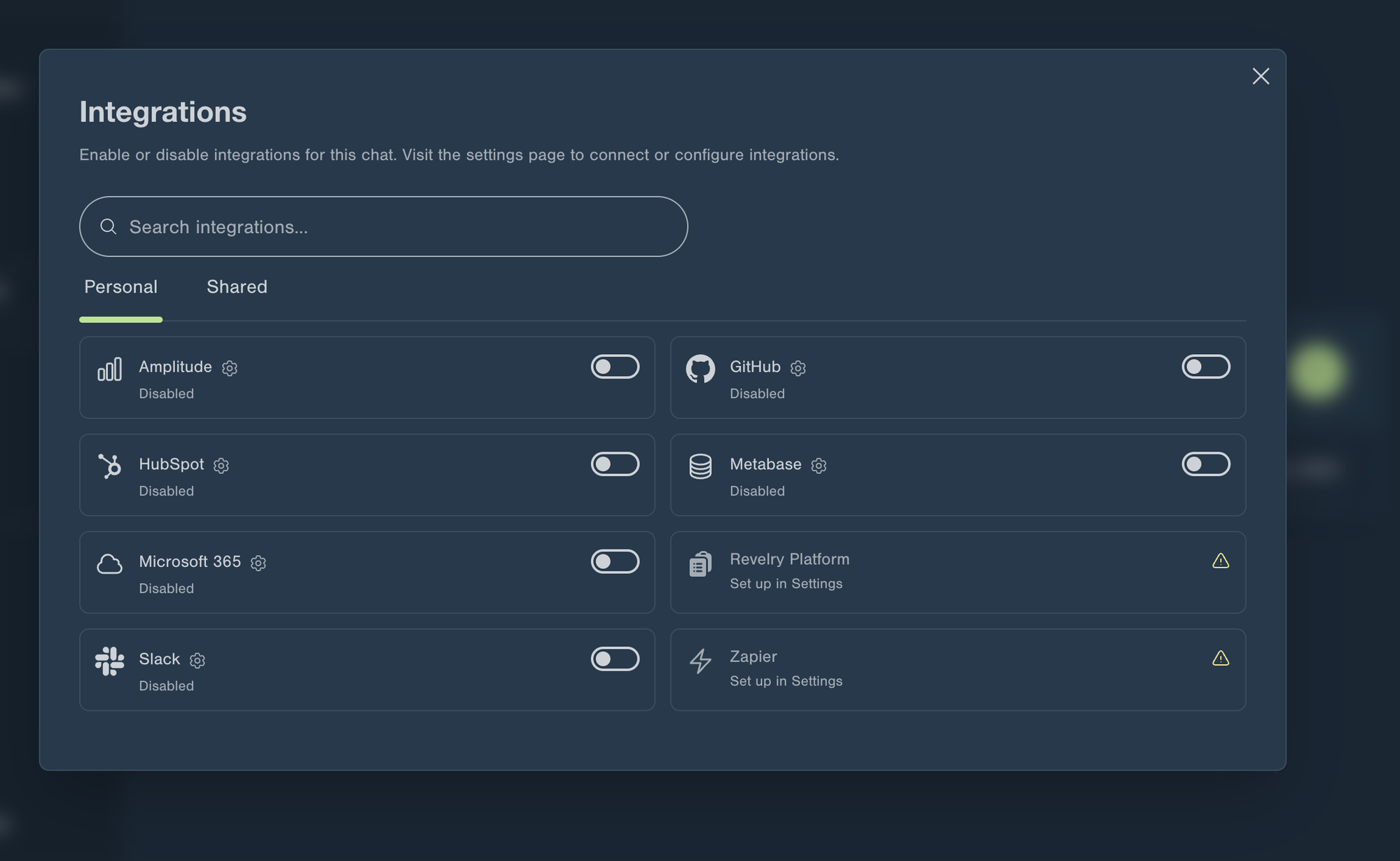
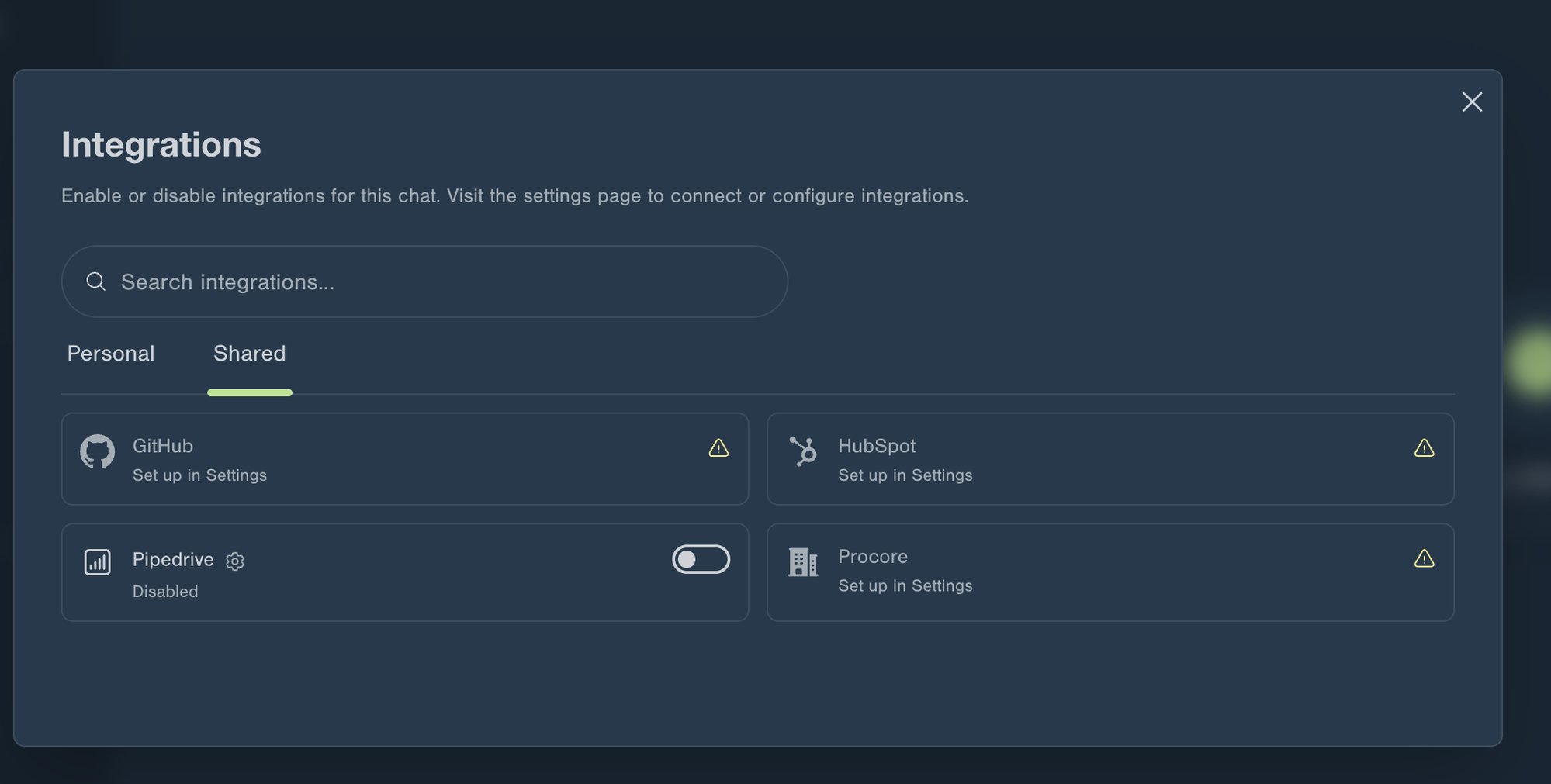
Connecting an integration makes it available; you still choose when it's active. Open the Chat Tools menu (the + button next to the message input) and select Integrations to open the Integrations panel. Toggle services on or off for the current chat — without disconnecting them.
The panel has two tabs:
- Personal — integrations connected to your own account.
- Shared — organization-level integrations (visible to users with the Manage Integrations permission).
Use the search box to filter the list, the toggle to enable a connected integration, or Set up in Settings for ones that still need to be connected.
You can preselect integrations the same way in the skill builder, so a Skill runs with the right services already enabled.
Learn more: Chat Tools Menu
Permissions
To manage shared integrations, you need the Manage Integrations permission. Personal integrations can be managed by any user for their own account. Contact your organization admin if you don't see the Integrations page.
Note: Integrations availability may vary depending on your organization's configuration and enabled features.
Next Steps
- HubSpot Integration — Connect your CRM
- Pipedrive Integration — Connect your sales pipeline
- GitHub Data Source — Connect your repositories
- Microsoft 365 Integration — Mail, Calendar, Word, Excel, and SharePoint via MCP
- Google Workspace Integration — Drive, Gmail, Calendar, Docs, Sheets, and Slides via MCP
- Metabase Integration — Query dashboards and datasets via MCP
- ElevenLabs Integration — Text-to-speech for artifacts
- Amplitude Integration — Query product analytics via MCP
- Jira Integration — Search, create, and update Jira issues via MCP
- Slack Integration — Search messages, channels, and files via MCP
- Zapier Integration — Reach thousands of apps via Zapier MCP
- Mapbox Integration - Points of interest, geocoding, distances, and directions via MCP
- Xero Integration - Live accounting data and financial reports via MCP
- Bluebeam Integration - Studio Projects, Sessions, documents, and markups via MCP
- Autodesk & BuildingConnected Integration - BuildingConnected bid board, opportunities, and bid packages via MCP
- Knowledge — View imported data