MCP Tools
MCP (Model Context Protocol) tools enable the AI to dynamically gather information during chat conversations. Instead of providing all context upfront, the AI can recursively call tools to get exactly what it needs, when it needs it.
How MCP Tools Work
Traditional approach:
- You provide all context → AI generates response (one-shot)
MCP approach:
- You ask a question → AI calls tools → examines results → calls more tools if needed → synthesizes answer
The AI decides which tools to use and keeps calling them until it has sufficient information to respond.
Example: Multi-Tool Workflow
Your question: "What are the key features mentioned in our product documentation and how do they compare to industry best practices?"
What happens:
- AI calls
document_querytool to search your Knowledge Base - Examines results and identifies key features
- Determines it needs external context
- AI calls
web_searchtool to research industry best practices - Synthesizes both sources into comprehensive answer with citations
You see: Tool execution feedback and source citations showing where information came from.
Available Tools
Document Tools (Knowledge)
document_query Search for documents by name, type, or format. Use this to:
- List all documents with filters
- Search documents by name
- View full document contents
- Limit results to your organization's own documents or to Global documents with the optional
scopeparameter
document_segment_query Semantic search across your Knowledge Base. Use this to:
- Find contextually relevant information
- Search by concepts and themes (not just keywords)
- Get the most relevant segments from any document
document_segment_full_text_search Exact phrase search within a specific document. Use this to:
- Find precise terms or phrases
- Search within a known document
- Get comprehensive matches for specific text
document_segment_context Retrieve surrounding context for document segments. Use this to:
- Get more context around a specific segment
- Understand the full context of a passage
- Expand on previously found information
Collection Tools (Knowledge)
list_collections List all collections in your Knowledge Base with document counts. Use this to:
- See what collections are available
- Understand the scope of your Knowledge Base
- Choose which collections to search
- Limit results to your organization's own collections or to Global collections with the optional
scopeparameter
Organization vs. Global content
Your Knowledge Base holds your organization's own collections, documents, and data sources, plus Global ones the platform shares with every organization. The list tools for all three accept an optional scope parameter, so you can ask the AI to look at just one side, for example "list only our organization's collections" or "which Global documents cover onboarding?" Without a scope, lists include both.
collection_create Create a new collection in your Knowledge Base. Use this to:
- Set up a new collection during a conversation
- Organize documents into focused groups without leaving chat
Includes case-insensitive duplicate detection to prevent creating collections with the same name.
Web Tools
web_search Search the internet for current information. Use this to:
- Find recent news and current events
- Research industry best practices
- Verify or supplement information with external sources
- Access real-time data beyond your Knowledge Base
web_fetch Fetch the full content of a webpage by URL. Use this to:
- Retrieve complete page content from a known URL
- Get detailed information from a specific web resource
- Complement web_search results with full page content
Project Tools
project_get_overview Get project context and overview information. Use this to:
- Retrieve the current project's details and description
- Provide the AI with project-specific context
project_update_name Rename the current project from within a conversation.
project_update_overview Edit the current project's overview description from within a conversation.
Changes show in the project breadcrumb and on the project page in real time.
Attachment Tools
attachment_details Get details about a specific attachment in the current chat.
attachment_semantic_search Perform semantic search within attached files.
attachment_full_text_search Perform exact text search within attached files.
attachment_segment_context Retrieve surrounding context for a segment within an attachment.
Image Analysis
When enabled, the AI can analyze images from your Knowledge Base using a dedicated vision-model subagent. This allows the AI to describe, interpret, and extract information from image documents during conversation. Analysis results are stored and linked to the original image for future reference.
Note: Contact your Revelry Ai team to enable image analysis.
Artifact Tools
All of the artifact tools below make up the single Artifacts built-in tool, toggled from the Chat Tools menu (on by default). When it's off, none of these tools are available — the AI can neither create/update artifacts nor discover existing ones (search/get). Turning it off is useful when you want a pure research or analysis conversation and don't want the AI creating artifacts or pulling them into context. See v1.2.0 release notes.
The AI can create and manage artifacts directly during chat conversations. Creation and update tools are split into direct and subagent variants so the AI picks the most efficient path:
artifact_direct_create Create a new Markdown artifact synchronously from content the AI already has in context. Fast — the AI writes the complete content itself, with no background work.
artifact_subagent_create Create a Markdown artifact asynchronously via a background subagent. The subagent runs in its own context with access to tools (web search, document search), so this is used when the content needs research the chat hasn't already done.
artifact_direct_update Update an artifact synchronously — replace its content, change metadata (name, type), or both, written inline by the AI.
artifact_subagent_update Update an artifact asynchronously via a background subagent, for refinements that need research or multi-step reasoning.
artifact_find_and_replace Apply targeted find-and-replace edits to an artifact's content instead of rewriting the whole document. Edits apply atomically: if the text to replace isn't found, nothing changes. This is what makes small refinements fast — the work is proportional to the edit, not the document.
artifact_rewrite Replace an artifact's entire content in one operation. The escape hatch for changes too sweeping for targeted edits.
artifact_get Retrieve an existing artifact's content.
artifact_search Search for artifacts using full-text search across both name and content. Supports relevance-based sorting for more accurate results.
artifact_list_types List available artifact types for the current project.
list_categories List available categories for organizing artifacts.
Report Artifact Tools
Dedicated tools for creating and updating HTML report artifacts:
report_artifact_create Create a new HTML report artifact. Runs asynchronously for higher-quality formatted output.
report_artifact_update Update an existing HTML report artifact.
The AI uses system-prompt context to distinguish between report requests and general artifact requests, automatically selecting the right tool.
As of v1.4.0, report refinement applies targeted edits via artifact_find_and_replace rather than regenerating the full document, so small changes complete much faster. Every content change also records a version in the artifact's version history, so a refinement can always be undone by restoring an earlier version.
Skill Tools
The AI can discover and execute Skills as tools during a conversation. This is the mechanism that ties Skills, Agents, and Chat together: a Skill isn't just something you run from the Skill Library. The AI can find and run it mid-conversation through these tools.
skill_list List and search the Skills available to you. The AI uses this to discover what specialized capabilities exist, filtering by name or category. Returns each Skill's id, name, description, required inputs, and enabled tools.
skill_get
Retrieve the full details of a specific Skill by ID: its content, required user inputs, and tool configuration. The AI uses skill_list first to find the ID.
load_skill Load a Skill's instructions into the current conversation and follow them inline, with no separate session. The Skill's configured tools and integrations are enabled for the chat immediately. Because the work happens in your conversation, the Skill sees everything you've already discussed, and you can steer it as it goes. Loading a Skill that would enable tools the chat doesn't already have goes through the approval gate; loads that change nothing run without approval. Note that an inline load uses the conversation's current model, not the Skill's own configured model.
skill_execute Run a Skill in its own isolated child chat session and return the result to the current conversation. The Skill runs with full, independent tool access and its own configured model, so this is the right path for large outputs, Skills pinned to a specific model, or tasks that don't need your conversation's context. It also lets the AI chain Skills together: run an analysis Skill and feed its output into a summary Skill, for example.
The AI chooses between inline and isolated execution based on the task, at its own discretion. You can also ask for one explicitly ("run this skill here" vs. "run this separately").
skill_create / skill_update Create or update a Skill from within a conversation. These are write operations. The AI only uses them when you explicitly ask it to build or change a Skill (and is subject to the approval gate), never proactively.
How Agents scope the Skill tools
When you're chatting with an Agent, the Skill tools are scoped to that Agent's attached Skills. skill_list, skill_get, load_skill, and skill_execute only see and run the Skills the Agent owns, not the whole library. This is what makes an Agent a focused chat experience: its instructions set the persona, and its curated Skills are the only capabilities the Skill tools can reach. See Composing Agents & Skills.
Organization Detail Tools
Organization Details are labeled facts about your organization, like your address, key contacts, or standard terms, managed on the Organization Details page in your organization's settings. Filling them in gives the AI and your Skills the right information about your organization in every chat.
organization_detail_list Look up your organization's details by label. The AI uses this in any chat to answer questions about your organization or to fill in standard information. Requires the Read Organization Details permission.
organization_detail_set Add a new detail or update an existing one from within a conversation. This is a write operation, subject to the approval gate, and requires the Write Organization Details permission, which Organization Admins have by default. Renaming a detail's label also updates any Skill content that references it.
User Context Tools
activity_snapshot A read-only summary of your recent activity: chats (with message previews), artifacts, documents, collections, and recently used Skills, plus what's available to you (Agents, Skills, projects, tools, and integrations). The AI uses this to pick up where you left off instead of asking you to restate what you've been working on. It can be scoped to the current project or your whole workspace, everything in it is permission-filtered, and the current chat is excluded from its own results.
Note: This tool is behind a feature flag. Contact your Revelry Ai team to enable.
Integration Tools
Integration tools are available when you connect external services and enable them via the Chat Tools menu. These tools let the AI interact with third-party platforms directly in chat.
Pipedrive
31 tools for interacting with your Pipedrive CRM — search, list, create, and update deals, persons, organizations, activities, notes, and pipeline metadata.
Learn more: Pipedrive Integration
Google Workspace
20 tools across Drive, Gmail, Calendar, Docs, Sheets, and Slides. Everything is read-only except creating a Gmail draft, which goes through the approval gate and is never sent.
Learn more: Google Workspace Integration
Procore
Tools for accessing construction project data from Procore:
procore_list_projects List available Procore projects.
procore_get_project_overview Get a detailed overview of a specific Procore project.
procore_search_submittals Search submittals within a Procore project.
procore_search_rfis Search RFIs (Requests for Information) within a Procore project.
procore_search_subcontractors Search subcontractors associated with a project.
procore_search_vendors Search vendors and supplier data.
procore_get_manpower_logs Retrieve manpower/labor logs for a project.
Mapbox
6 read-only tools in two toolsets: POI & Geocoding (search points of interest, geocode, reverse geocode) and Distance & Directions (distance and travel time, directions, distance matrix for up to 25 locations).
Learn more: Mapbox Integration
Xero
16 tools for one connected Xero organization: contacts, invoices and bills, payments, bank transactions, the chart of accounts, and five financial reports. Three write tools (create invoice, create payment, update contact) go through the approval gate.
Learn more: Xero Integration
Bluebeam
5 read-only tools for Bluebeam Studio: list Projects, list Sessions, get a Session, list a Session's documents, and read a document's markups.
Learn more: Bluebeam Integration
Autodesk & BuildingConnected
28 tools for BuildingConnected over the user's Autodesk connection: opportunities, bid packages, project and scope-specific bid forms with their line items, submitted bids with their line items, leveling plugs, and attachments, projects, contacts, offices, and users. Four write tools (create and update opportunity, create and update bid package) go through the approval gate.
Learn more: Autodesk & BuildingConnected Integration
GitHub
When GitHub MCP is connected (via personal or shared configuration), the AI can interact with repositories, issues, pull requests, and code directly in chat.
Knowledge Settings
You can filter which collections and document types are active in a chat session using the Knowledge Settings. This allows you to scope the AI's search to specific collections or document types for more focused results.
Configuring Tools
Chat Tools menu
Open the Chat Tools menu from the + button next to the message input to control what the AI can use in a conversation: context, built-in tools, and integrations.
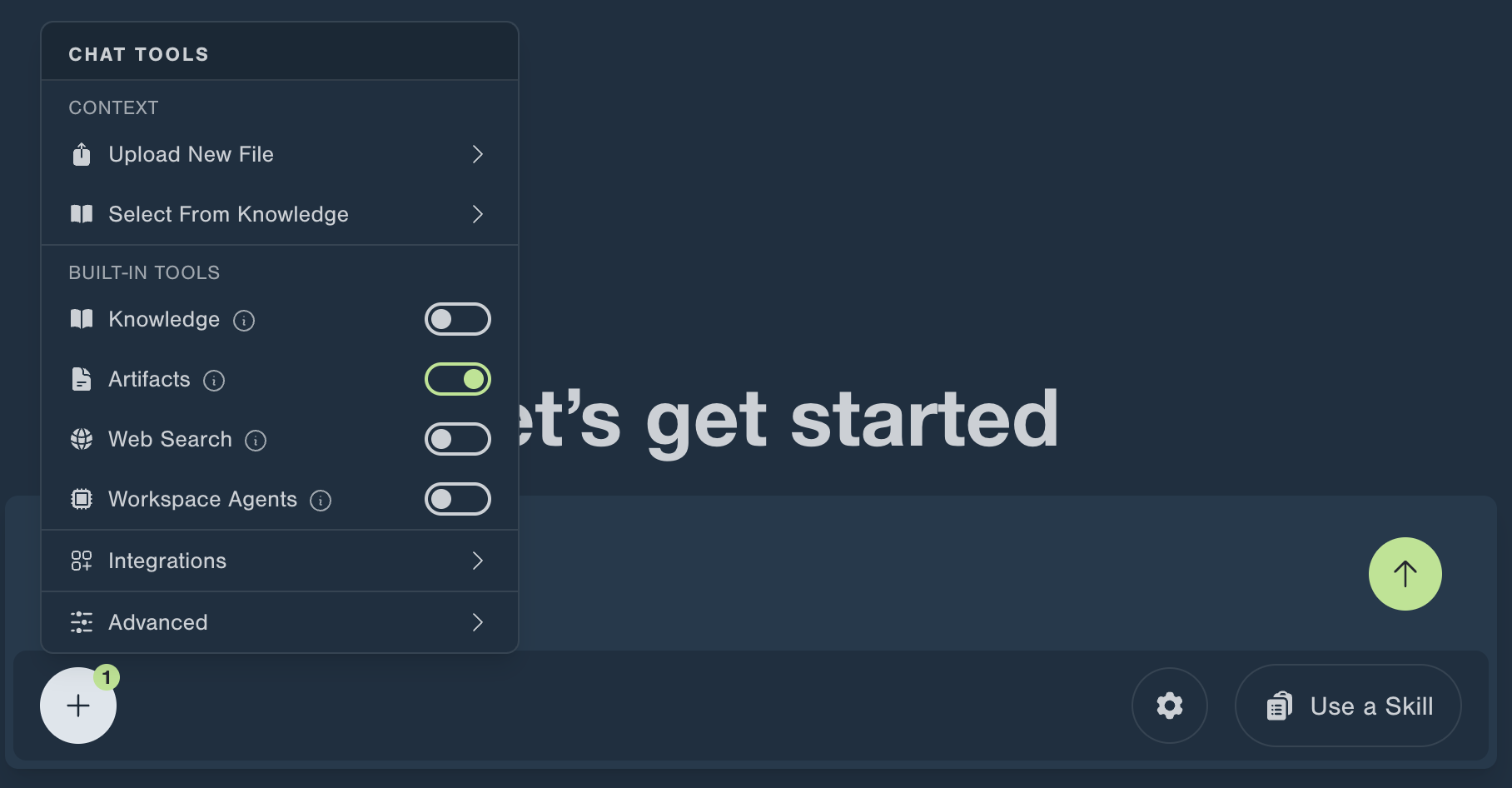
The menu is organized into sections:
- Context: add material to the conversation with Upload New File or Select From Knowledge.
- Built-in Tools: turn Revelry Ai's native capabilities on or off.
- Knowledge searches and queries your Knowledge Base. It is off by default. Some organizations have it on by default for every new chat. Contact your Revelry Ai team to enable.
- Artifacts creates, updates, and finds Artifacts, and is on by default. Turn it off to keep a chat to research and analysis. With it off, the AI can't create or discover artifacts.
- Web Search searches the web, and is on by default. Turn it off to keep answers to your files and Knowledge Base.
- Workspace Agents runs file-processing agents.
- Integrations: open the Integrations panel to enable or disable connected external services (GitHub, HubSpot, Pipedrive, Amplitude, Slack, Zapier, and more) for this chat. See Enabling integrations in chat.
- Advanced: additional per-conversation settings.
The model you choose and the tools you turn on are remembered as defaults for your future chats until you change them. The same controls are available in the skill builder, so a Skill can ship with its tools and integrations preselected.
Why control tools?
- Focus - Disable tools you don't need for faster responses
- Privacy - Prevent access to certain data sources
- Workflow - Enable only relevant tools for specific tasks
Tool Permissions
Tools respect your access permissions:
- You can only access documents/collections you have permission to view
- External tools use your authenticated credentials
- Groups control which projects, categories, documents, and data sources you can access
Approval Gate for Mutations
When the AI calls an MCP tool that performs a write operation — such as creating, updating, or deleting records in a connected integration — you will see an approval prompt before the action is executed.
You have three options:
- Approve — Allow this specific action to proceed
- Always Allow — Allow this type of action for the rest of the conversation without further prompts
- Deny — Block the action
Read-only operations (queries, searches) proceed without requiring approval. The approval state persists if you navigate away and return to the conversation.
Tools are classified based on the MCP readOnly annotation. Tools that are not annotated default to requiring approval, ensuring safe behavior for unclassified operations.
Concurrent Execution
When the AI calls multiple tools, they run simultaneously:
- Faster responses - No waiting for sequential tool calls
- Efficient - Multiple data sources retrieved in parallel
- Transparent - You see all tool activity in real-time
Source Citations
When tools return information, you'll see:
- Which tool was called - e.g., "document_segment_query", "web_search", "document_query"
- What was retrieved - Preview of the information found
- Where it came from - Links to original documents or web sources
This helps you:
- Verify information accuracy
- Understand the AI's reasoning
- Follow up on specific sources
Tool Isolation
Each chat session has its own MCP client:
- Per-conversation settings - Tool configuration doesn't affect other chats
- Automatic cleanup - Tools are released when you close the chat
- Process isolation - External tools run in separate processes for security
Best Practices
Start Broad
Enable all relevant tools at the beginning. The AI will use only what it needs.
Monitor Tool Activity
Pay attention to which tools are being called. This helps you understand what information the AI is gathering.
Refine Tool Selection
If certain tools aren't helpful, disable them to streamline the conversation.
Trust the Process
The AI may call tools multiple times as it refines its understanding. This is expected behavior for complex questions.
Troubleshooting
Tools not appearing?
- Check your project configuration
- Verify MCP server connections
- Ensure you have necessary permissions
Tool calls failing?
- Check authentication credentials for external tools
- Verify you have access to requested collections
- Review error messages for specific issues
Too many tool calls?
- Refine your question to be more specific
- Disable tools that aren't relevant
- Check if data is available in your Knowledge Base
Technical Details
For developers and technical users:
Architecture: Each chat spawns a GenServer-based MCP client with:
- JSON-RPC 2.0 communication with external servers
- Stdio transport with process isolation
- Permission checking tied to application auth system
Tool Registry: Tools are registered per session and managed by a GenServer that maintains available tools and execution state.
Reference: See Building an MCP Client in Elixir for implementation details.
Next Steps
- Learn more about Chat workflows
- Configure Collections for better tool results
- Understand Building a Skill with Knowledge tools